Adobe Premiere Pro CC Classroom in a Book 2018: Adobe Classroom
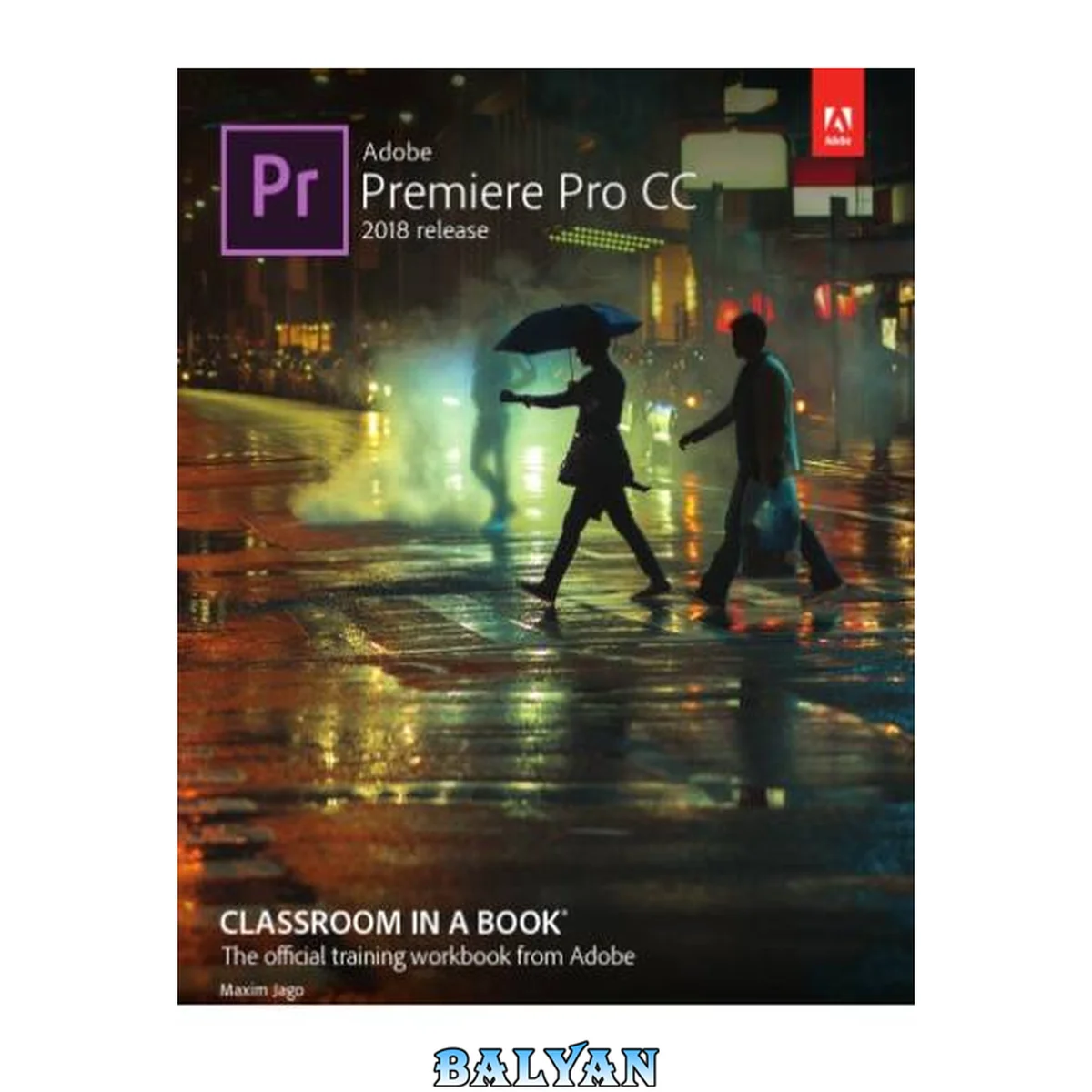
معرفی کتاب «Adobe Premiere Pro CC Classroom in a Book 2018: Adobe Classroom» نوشتهٔ Jago, Maxim، منتشرشده توسط نشر Adobe Press در سال 2018. این کتاب در فرمت pdf، زبان انگلیسی ارائه شده است.
Creative professionals seeking the fastest, easiest, most comprehensive way to learn Adobe Premiere Pro CC (2018 release) choose Adobe Premiere Pro CC Classroom in a Book (2018 release) from Adobe Press. The 18 project-based lessons in this book show users step-by-step the key techniques for working in Premiere Pro. Learn to edit video in Adobe Premiere Pro CC 2018 and get the most out of your workflow. Take a project from beginning to end and learn to organize media, add audio, create transitions, produce titles, and add effects. Take your projects further by sweetening and mixing sound, compositing footage, adjusting color, using advanced editing techniques, managing projects, working with 360 video for VR headsets, animating graphics, exporting, and much more. The online companion files include all the necessary assets for readers to complete the projects featured in each chapter as well as ebook updates when Adobe releases relevant new features for Creative Cloud customers. All buyers of the book get full access to the Web Edition: a Web-based version of the complete ebook enhanced with video and multiple-choice quizzes. Cover......Page 1 Title Page......Page 2 Copyright Page......Page 3 ACKNOWLEDGMENTS......Page 5 CONTENTS......Page 6 About Classroom in a Book......Page 12 Optimizing performance......Page 13 Using the lesson files......Page 14 How to use these lessons......Page 15 Online content......Page 16 Additional resources......Page 17 Adobe Authorized Training Centers......Page 18 1 TOURING ADOBE PREMIERE PRO CC......Page 19 Performing nonlinear editing in Premiere Pro......Page 21 Expanding the workflow......Page 25 Touring the Premiere Pro interface......Page 26 Keyboard shortcuts......Page 37 Review Answers......Page 40 2 SETTING UP A PROJECT......Page 41 Starting the lesson......Page 43 Creating a project......Page 44 Setting up a sequence......Page 56 Review Questions......Page 63 Review Answers......Page 64 3 IMPORTING MEDIA......Page 65 Importing assets......Page 67 Working with ingest options and proxy media......Page 69 Working with the Media Browser panel......Page 71 Importing still image files......Page 77 Using Adobe Stock......Page 81 Customizing the media cache......Page 82 Recording a voice-over......Page 84 Review Questions......Page 85 Review Answers......Page 86 4 ORGANIZING MEDIA......Page 87 Using the Project panel......Page 89 Working with bins......Page 95 Monitoring footage......Page 103 Modifying clips......Page 109 Review Answers......Page 114 5 MASTERING THE ESSENTIALS OF VIDEO EDITING......Page 115 Using the Source Monitor......Page 117 Navigating the Timeline......Page 123 Using essential editing commands......Page 131 Review Answers......Page 138 6 WORKING WITH CLIPS AND MARKERS......Page 139 Using Program Monitor controls......Page 141 Setting the playback resolution......Page 147 Playing back VR video......Page 149 Using markers......Page 151 Using Sync Lock and Track Lock......Page 157 Selecting clips......Page 160 Moving clips......Page 163 Extracting and deleting segments......Page 166 Review Answers......Page 170 7 ADDING TRANSITIONS......Page 171 Starting the lesson......Page 173 What are transitions?......Page 174 Using edit points and handles......Page 175 Adding video transitions......Page 177 Using A/B mode to fine-tune a transition......Page 182 Adding audio transitions......Page 188 Review Answers......Page 192 8 ADVANCED EDITING TECHNIQUES......Page 193 Performing four-point editing......Page 195 Changing playback speed......Page 197 Replacing clips and footage......Page 203 Nesting sequences......Page 207 Performing regular trimming......Page 209 Performing advanced trimming......Page 210 Trimming in the Program Monitor......Page 215 Review Questions......Page 221 Review Answers......Page 222 9 PUTTING CLIPS IN MOTION......Page 223 Adjusting the Motion effect......Page 225 Changing clip position, size, and rotation......Page 230 Working with keyframe interpolation......Page 240 Using other motion-related effects......Page 244 Review Answers......Page 250 10 MULTICAMERA EDITING......Page 251 Following the multicamera process......Page 253 Creating a multicamera sequence......Page 255 Switching multiple cameras......Page 259 Finalizing multicamera editing......Page 262 Review Questions......Page 263 Review Answers......Page 264 11 EDITING AND MIXING AUDIO......Page 265 Setting up the interface to work with audio......Page 267 Examining audio characteristics......Page 276 Recording a voice-over track......Page 277 Adjusting audio volume......Page 279 Creating a split edit......Page 284 Adjusting audio levels for a clip......Page 285 Review Questions......Page 289 Review Answers......Page 290 12 SWEETENING SOUND......Page 291 Sweetening sound with the Essential Sound panel......Page 293 Adjusting dialogue......Page 295 Review Questions......Page 311 Review Answers......Page 312 13 ADDING VIDEO EFFECTS......Page 313 Working with effects......Page 315 Working with master clip effects......Page 327 Masking and tracking visual effects......Page 330 Using keyframing effects......Page 333 Using effect presets......Page 337 Using frequently used effects......Page 340 Rendering and replacing......Page 345 Review Questions......Page 347 Review Answers......Page 348 14 IMPROVING CLIPS WITH COLOR CORRECTION AND GRADING......Page 349 Starting the lesson......Page 351 Following a color-oriented workflow......Page 352 Exploring the color-oriented effects......Page 366 Fixing exposure problems......Page 370 Fixing color balance......Page 374 Using special color effects......Page 378 Creating a look......Page 379 Review Questions......Page 381 Review Answers......Page 382 15 EXPLORING COMPOSITING TECHNIQUES......Page 383 Starting the lesson......Page 385 What is an alpha channel?......Page 386 Making compositing part of your projects......Page 387 Working with the Opacity effect......Page 389 Working with alpha-channel transparencies......Page 393 Color keying a greenscreen shot......Page 394 Masking clips......Page 399 Review Answers......Page 402 16 CREATING TITLES......Page 403 Getting an overview of the Essential Graphics panel......Page 405 Mastering video typography essentials......Page 409 Creating titles......Page 414 Styling text......Page 417 Working with shapes and logos......Page 421 Making text roll and crawl......Page 424 Introducing captions......Page 426 Review Answers......Page 430 17 MANAGING YOUR PROJECTS......Page 431 Using the File menu......Page 433 Using the Project Manager......Page 435 Browsing projects with the Media Browser panel......Page 443 Managing collaboration......Page 446 Managing your hard drives......Page 447 Review Questions......Page 449 Review Answers......Page 450 18 EXPORTING FRAMES, CLIPS, AND SEQUENCES......Page 451 Understanding the export options......Page 453 Exporting single frames......Page 454 Exporting a master copy......Page 455 Working with Adobe Media Encoder CC......Page 458 Exchanging with other editing applications......Page 464 Final practice......Page 466 Review Answers......Page 468 A......Page 469 C......Page 470 E......Page 471 F......Page 472 L......Page 473 M......Page 474 P......Page 475 R......Page 476 S......Page 477 T......Page 478 W......Page 479 Z......Page 480 Cover 1 Title Page 2 Copyright Page 3 ACKNOWLEDGMENTS 5 CONTENTS 6 GETTING STARTED 12 About Classroom in a Book 12 Prerequisites 13 Installing Premiere Pro CC 13 Optimizing performance 13 Using the lesson files 14 Relinking the lesson files 15 How to use these lessons 15 Online content 16 Additional resources 17 Adobe Authorized Training Centers 18 1 TOURING ADOBE PREMIERE PRO CC 19 Starting the lesson 21 Performing nonlinear editing in Premiere Pro 21 Expanding the workflow 25 Touring the Premiere Pro interface 26 Keyboard shortcuts 37 Review Questions 40 Review Answers 40 2 SETTING UP A PROJECT 41 Starting the lesson 43 Creating a project 44 Setting up a sequence 56 Review Questions 63 Review Answers 64 3 IMPORTING MEDIA 65 Starting the lesson 67 Importing assets 67 Working with ingest options and proxy media 69 Working with the Media Browser panel 71 Importing still image files 77 Using Adobe Stock 81 Customizing the media cache 82 Recording a voice-over 84 Review Questions 85 Review Answers 86 4 ORGANIZING MEDIA 87 Starting the lesson 89 Using the Project panel 89 Working with bins 95 Monitoring footage 103 Modifying clips 109 Review Questions 114 Review Answers 114 5 MASTERING THE ESSENTIALS OF VIDEO EDITING 115 Starting the lesson 117 Using the Source Monitor 117 Navigating the Timeline 123 Using essential editing commands 131 Review Questions 138 Review Answers 138 6 WORKING WITH CLIPS AND MARKERS 139 Starting the lesson 141 Using Program Monitor controls 141 Setting the playback resolution 147 Playing back VR video 149 Using markers 151 Using Sync Lock and Track Lock 157 Finding gaps in the Timeline 160 Selecting clips 160 Moving clips 163 Extracting and deleting segments 166 Review Questions 170 Review Answers 170 7 ADDING TRANSITIONS 171 Starting the lesson 173 What are transitions? 174 Using edit points and handles 175 Adding video transitions 177 Using A/B mode to fine-tune a transition 182 Adding audio transitions 188 Review Questions 192 Review Answers 192 8 ADVANCED EDITING TECHNIQUES 193 Starting the lesson 195 Performing four-point editing 195 Changing playback speed 197 Replacing clips and footage 203 Nesting sequences 207 Performing regular trimming 209 Performing advanced trimming 210 Trimming in the Program Monitor 215 Review Questions 221 Review Answers 222 9 PUTTING CLIPS IN MOTION 223 Starting the lesson 225 Adjusting the Motion effect 225 Changing clip position, size, and rotation 230 Working with keyframe interpolation 240 Using other motion-related effects 244 Review Questions 250 Review Answers 250 10 MULTICAMERA EDITING 251 Starting the lesson 253 Following the multicamera process 253 Creating a multicamera sequence 255 Switching multiple cameras 259 Finalizing multicamera editing 262 Review Questions 263 Review Answers 264 11 EDITING AND MIXING AUDIO 265 Starting the lesson 267 Setting up the interface to work with audio 267 Examining audio characteristics 276 Recording a voice-over track 277 Adjusting audio volume 279 Creating a split edit 284 Adjusting audio levels for a clip 285 Review Questions 289 Review Answers 290 12 SWEETENING SOUND 291 Starting the lesson 293 Sweetening sound with the Essential Sound panel 293 Adjusting dialogue 295 Review Questions 311 Review Answers 312 13 ADDING VIDEO EFFECTS 313 Starting the lesson 315 Working with effects 315 Working with master clip effects 327 Masking and tracking visual effects 330 Using keyframing effects 333 Using effect presets 337 Using frequently used effects 340 Rendering and replacing 345 Review Questions 347 Review Answers 348 14 IMPROVING CLIPS WITH COLOR CORRECTION AND GRADING 349 Starting the lesson 351 Following a color-oriented workflow 352 Exploring the color-oriented effects 366 Fixing exposure problems 370 Fixing color balance 374 Using special color effects 378 Creating a look 379 Review Questions 381 Review Answers 382 15 EXPLORING COMPOSITING TECHNIQUES 383 Starting the lesson 385 What is an alpha channel? 386 Making compositing part of your projects 387 Working with the Opacity effect 389 Working with alpha-channel transparencies 393 Color keying a greenscreen shot 394 Masking clips 399 Review Questions 402 Review Answers 402 16 CREATING TITLES 403 Starting the lesson 405 Getting an overview of the Essential Graphics panel 405 Mastering video typography essentials 409 Creating titles 414 Styling text 417 Working with shapes and logos 421 Making text roll and crawl 424 Introducing captions 426 Review Questions 430 Review Answers 430 17 MANAGING YOUR PROJECTS 431 Starting the lesson 433 Using the File menu 433 Using the Project Manager 435 Performing the final project management steps 443 Browsing projects with the Media Browser panel 443 Managing collaboration 446 Using the Libraries panel 447 Managing your hard drives 447 Review Questions 449 Review Answers 450 18 EXPORTING FRAMES, CLIPS, AND SEQUENCES 451 Starting the lesson 453 Understanding the export options 453 Exporting single frames 454 Exporting a master copy 455 Working with Adobe Media Encoder CC 458 Uploading to social media 464 Exchanging with other editing applications 464 Final practice 466 Review Questions 468 Review Answers 468 INDEX 469 A 469 B 470 C 470 D 471 E 471 F 472 G 473 H 473 I 473 J 473 K 473 L 473 M 474 N 475 O 475 P 475 Q 476 R 476 S 477 T 478 U 479 V 479 W 479 X 480 Y 480 Z 480 The 18 project-based lessons in this book show users step-by-step the key techniques for working in Premiere Pro. Learn to edit video in Adobe Premiere Pro CC 2018 and get the most out of your workflow. Take a project from beginning to end and learn to organize media, add audio, create transitions, produce titles, and add effects. Take your projects further by sweetening and mixing sound, compositing footage, adjusting color, using advanced editing techniques, managing projects, working with 360 video for VR headsets, animating graphics, exporting, and much more. Companion DVD / online files includes sample media files for all of the book's projects
دانلود کتاب Adobe Premiere Pro CC Classroom in a Book 2018: Adobe Classroom